

How Can I Set Up a Vevo ChannelHow Can I Set Up a Vevo Channel? | P Tune Studio (Backstage) Guide
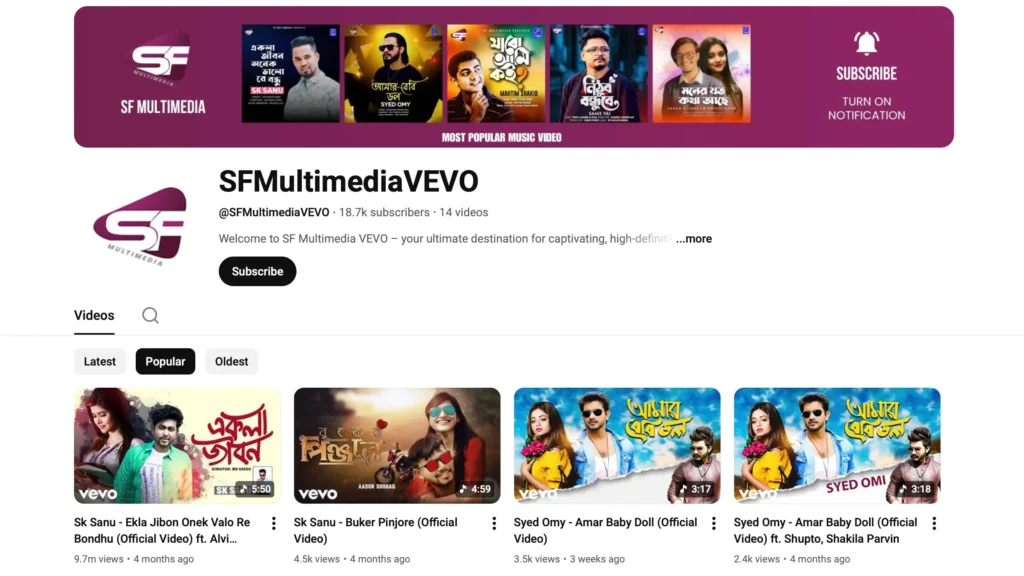
P Tune Studio makes Vevo distribution easier than ever.
Through Backstage, our clients can request their own Vevo channel, upload videos, and manage everything in one place — without waiting on emails or manual processing.
Whether you’re opening your first Vevo channel or preparing to publish a new video, here’s everything you need to know.? | P Tune Studio Guide
Step 1: Request Your Vevo Channel Through Backstage
To set up your Vevo channel, simply submit a request inside Backstage.
You can request:
- A brand-new Vevo channel
- Vevo channel activation for an existing artist
- Updates or corrections to your Vevo profile
All you need to get started is the name you want for your Vevo channel, usually in the format:
👉 ArtistNameVevo
Once you submit the name, our team begins the setup process.
Meanwhile, you can prepare the optional details that will help complete your channel profile.
Information You Can Add to Your Vevo Channel
Inside Backstage, you’ll be able to include:
- Vevo Channel Name (ArtistNameVevo)
- Channel Description (optional)
- Channel Keywords (optional)
- Featured Channels (optional)
- Channel Banner Image URL (optional)
- Channel Profile Image URL (optional)
These help make your channel polished and viewer-friendly.
Uploading Your First Vevo Video Through Backstage
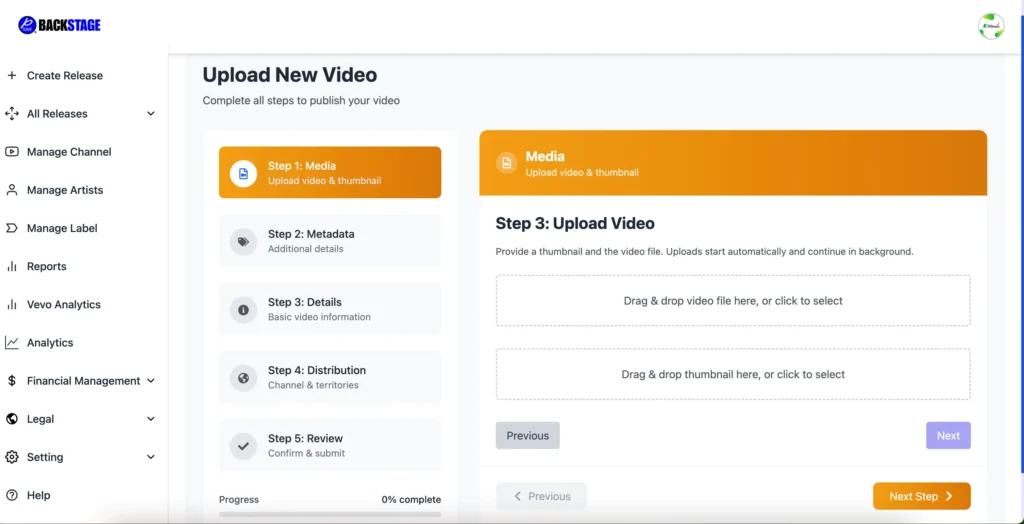
Once your channel is live, you can upload your music video directly from Backstage.
Before uploading, make sure you’ve prepared:
- All required metadata
- Your video file in Vevo-approved format
- Your thumbnail
- Your release schedule
If needed, Backstage will also guide you to our video specifications so you follow Vevo’s technical standards correctly.
Requirements for Vevo Video Upload
Here’s everything you’ll need when submitting your video:
🔸 1. Basic Video Details
- Video Title (same as your track title)
- Artist Name
- Vevo Channel URL
- Track Genre
🔸 2. Audio Identifiers
- UPC — found in Backstage under Assets → Albums
- ISRC — found under Assets → Tracks
🔸 3. Video Assets
- Video File prepared using Vevo’s official guidelines
- Thumbnail Image (1920 × 1080 resolution required)
🔸 4. Release Information
- Release Date (must be at least 7 days ahead for a guaranteed schedule)
- Release Time + Time Zone
🔸 5. Copyright Details
Format example:
© 2024 P TUNE STUDIO
or
© 2024 YOUR LABEL NAME
Need Support?
If you still have questions or need help:
- Submit a ticket through Backstage
- Use the support chat on our website
- Contact our Client Management Team anytime
We’re here to help you launch your Vevo channel smoothly.